Handheld vs docked: getting the best picture from your Switch
Most Switch games run at a higher resolution when docked and a lower one in handheld mode, and many change their frame rate too. A few settings on both the console and your TV help each mode look its best.
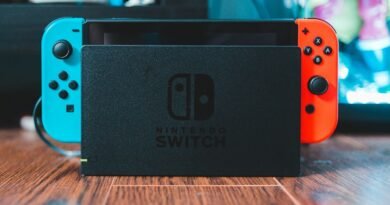
Docked
- Set TV resolution to 1080p in System Settings and let the TV handle any upscaling; “automatic” sometimes picks a lower mode.
- Use the TV’s game mode. It reduces input lag far more than any console setting.
- Set RGB range to “Full” only if your TV supports it — if blacks look crushed, switch back to “Limited”.
- Use the official dock or a certified third-party one. Uncertified docks have damaged consoles in the past.
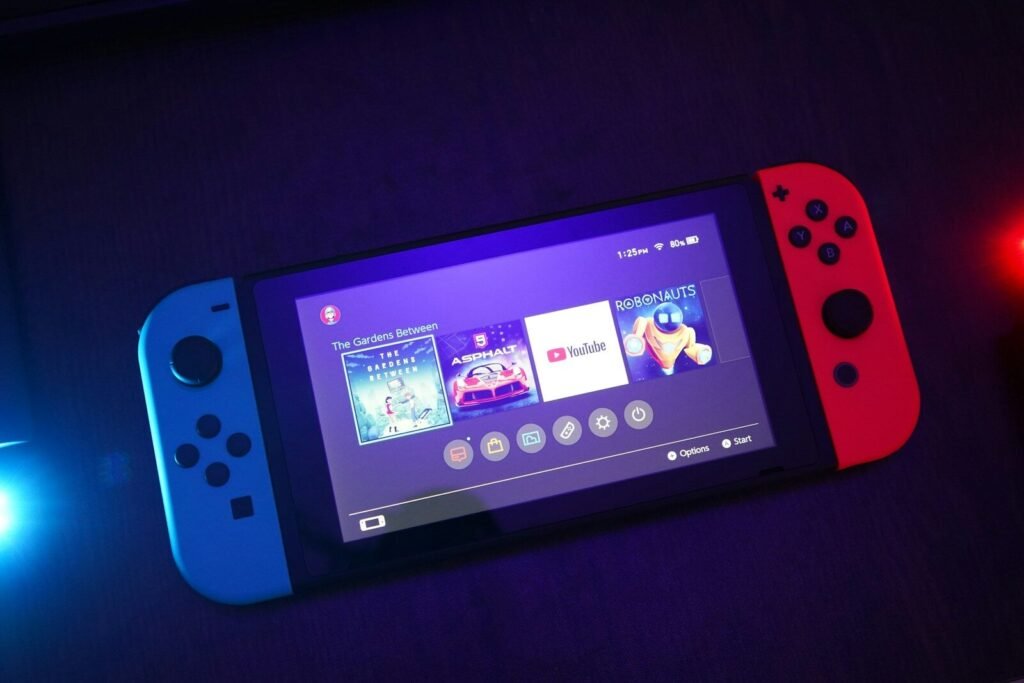
Handheld
- Lower brightness and enable auto-brightness to stretch battery life.
- Some games offer a performance or quality toggle; performance mode usually looks better on the small screen because motion is smoother.
- Keep the screen clean — fingerprints are far more visible on the matte panel than on a TV.
Either way
If a game looks blurry, check whether it has a patch available. Many titles received resolution and performance improvements after launch, and the eShop page lists the latest version.